
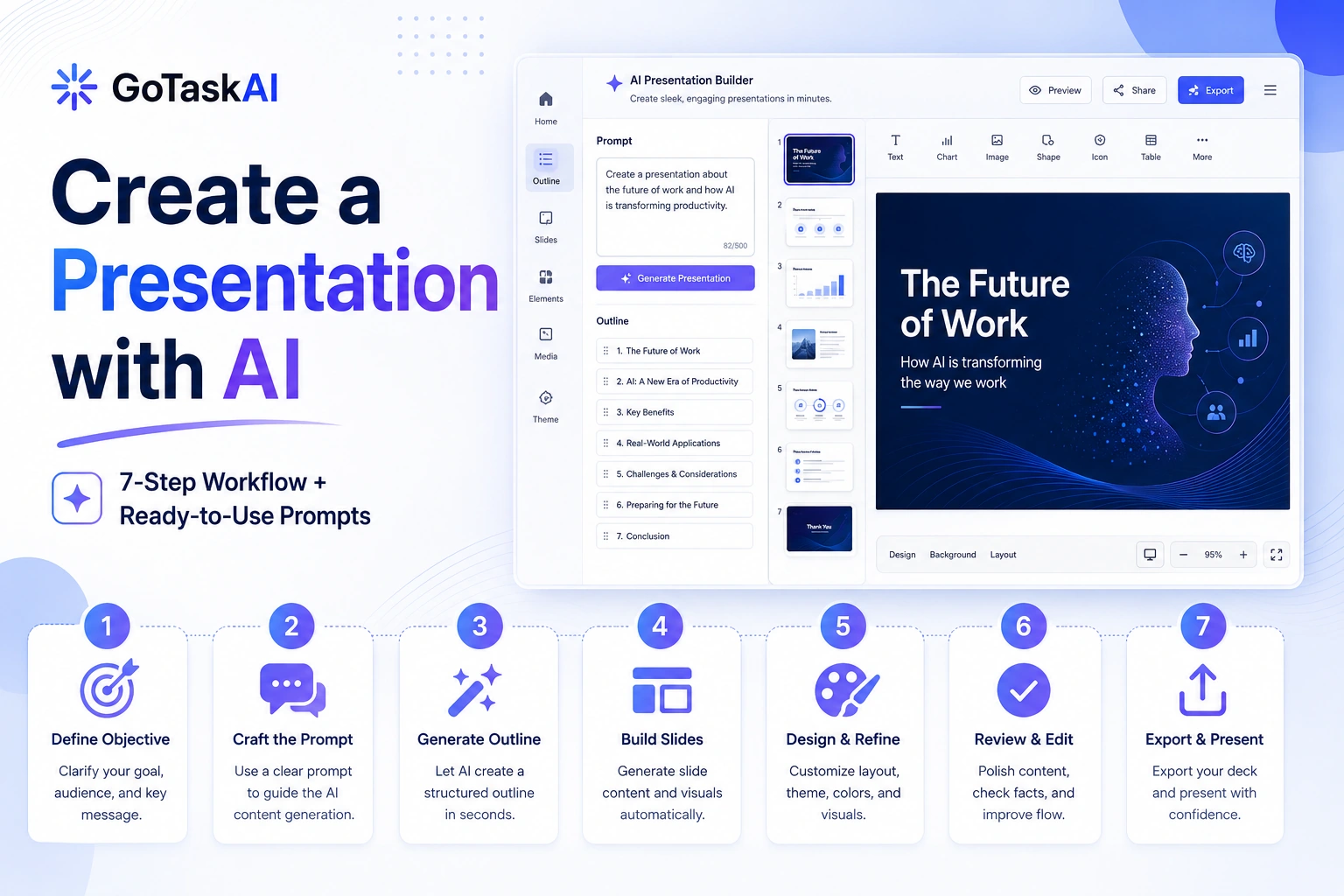
Creating a presentation with AI can save hours of outlining, writing, and design work—but only when the process starts with the right inputs. A weak prompt often produces generic slides, repetitive talking points, and visuals that look polished without communicating anything useful. A strong workflow turns AI into a practical presentation assistant rather than an automatic slide generator.
In this guide, you will learn how to create a presentation with AI through a structured seven-step process. We will move from defining the audience and gathering reliable source material to building the outline, generating the first draft, checking every claim, improving the visual flow, and preparing speaker notes. You will also get reusable prompts for business presentations, educational slides, reports, training materials, and pitch decks.
The goal is not to let AI make every decision. The goal is to use it for the repetitive work while keeping human control over the message, evidence, structure, and final delivery. By the end, you will have a repeatable workflow that works with tools such as Gamma, Canva AI, Gemini, and Microsoft Copilot—and a quality checklist that helps you turn an AI-generated draft into a presentation people can actually understand, remember, and act on.
How to Create a Presentation with AI: What You Need First
Before opening an AI presentation tool, prepare the information that will guide its decisions. AI can organize and rewrite material quickly, but it cannot reliably determine your real objective, understand an unfamiliar audience, or verify every fact without clear instructions and trustworthy source material.
Start with four essentials: the presentation goal, the intended audience, the action you want people to take, and the information the slides must include. A sales presentation, for example, needs a different structure from a classroom lesson, an internal report, or an investor pitch. Defining the format early helps the AI choose the right tone, level of detail, slide sequence, and visual style.
You should also collect the files, notes, links, statistics, brand guidelines, and examples the presentation will rely on. Remove outdated or duplicated material before uploading it. The cleaner your inputs are, the less time you will spend correcting generic claims, repeated slides, inconsistent numbers, and irrelevant sections later.
A useful preparation brief should include:
– Presentation topic and main objective
– Target audience and their existing knowledge
– Desired number of slides
– Key facts, data, and sources
– Required sections or talking points
– Preferred tone and visual style
– Final call to action or expected outcome
Treat this brief as the foundation of the entire workflow. It will be reused when choosing the tool, generating the outline, writing the slides, and reviewing the final presentation.
Step 1: Define the Goal, Audience, and Desired Outcome
The first step is to decide what the presentation must accomplish. AI can generate slides quickly, but it cannot choose the right message unless you give it a clear objective. A presentation designed to explain a process will need a different structure from one intended to persuade a client, secure approval, teach a class, or present business results.
Write the goal as one specific sentence. Avoid vague instructions such as “create a presentation about cybersecurity.” A stronger goal would be: “Create a 12-slide presentation that explains the main cybersecurity risks facing small businesses and persuades owners to adopt five basic security practices.” This gives the AI a topic, audience, purpose, scope, and expected outcome.
Next, define the audience. Consider what they already know, what they care about, what objections they may have, and how much technical detail they can understand. An executive audience usually needs concise conclusions, business impact, and recommended actions. A technical audience may need methodology, supporting evidence, limitations, and implementation details.
Finally, decide what should happen after the presentation. The desired outcome might be approving a proposal, choosing a product, remembering key concepts, changing a process, or scheduling a follow-up meeting. This outcome should influence the final slides and call to action.
Use this planning template before generating anything:
- Goal: What must this presentation achieve?
- Audience: Who will view it, and what do they already know?
- Core message: What is the single most important idea?
- Desired action: What should the audience do next?
- Length: How many slides and how much presentation time?
- Tone: Educational, persuasive, executive, technical, or conversational?
A clear brief at this stage prevents the AI from producing a visually attractive presentation with no real direction.
Step 2: Gather and Organize Your Source Material
AI can build a presentation faster when it receives clean, relevant, and well-organized source material. If you provide scattered notes, outdated statistics, duplicated files, or unclear instructions, the generated slides will usually reflect those weaknesses. Before creating the presentation, prepare a reliable content pack that the AI can use as its factual foundation.
Start by collecting only the material that directly supports the presentation goal. This may include reports, spreadsheets, meeting notes, research papers, product documents, customer feedback, website pages, brand guidelines, or previously approved presentations. Remove anything outdated, repeated, or unrelated before uploading it.
Next, organize the information into clear groups. A practical structure might include:
– Background and context
– Main problem or opportunity
– Key facts and supporting evidence
– Proposed solution or central argument
– Examples, case studies, or proof
– Risks, limitations, or objections
– Recommended next steps
When possible, label each source with its date, owner, and intended use. This makes it easier to identify which numbers are current, which claims require verification, and which materials are approved for external use.
Avoid asking the AI to invent missing evidence. If an important number, quote, or conclusion is not supported by your materials, mark it as a gap instead of letting the tool fill it with a plausible-sounding statement. A useful instruction is: “Use only the attached sources. If information is missing, flag it clearly and do not create unsupported facts.”
For complex presentations, create a short source summary before generating slides. List the most important facts, the strongest supporting evidence, and any points that must not be omitted. This gives the AI a cleaner reference and reduces the risk of inconsistent numbers, duplicated ideas, and unsupported claims.
The quality of the final presentation depends heavily on the quality of the material provided at this stage. Good source preparation reduces editing time later and makes the presentation more accurate, focused, and credible.
Step 3: Choose the Right AI Presentation Tool
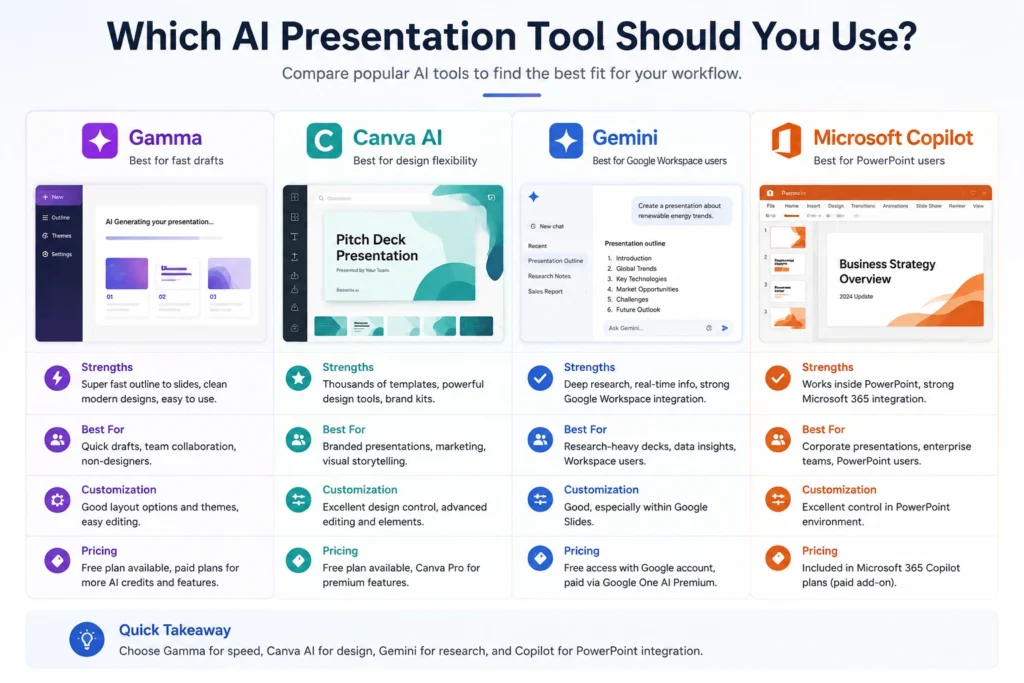
The best AI presentation tool depends on where your content already lives, how much design control you need, and what format you want to deliver. Some tools are built to generate a complete presentation from a prompt, while others work better when you already have source files, an established brand template, or a preferred slide editor.
Do not choose a tool only because it can generate slides quickly. Consider how easily you can revise the outline, verify the content, control the visual style, collaborate with others, export the final file, and continue editing after the first draft.
Gamma: Best for Building a Complete Draft Quickly
Gamma is a strong option when you want to move rapidly from an idea, outline, document, file, or existing text to a structured presentation. It supports generating from a prompt, pasting prepared content, importing files, and restyling imported material with AI.
Choose Gamma when speed, clear storytelling, and easy restructuring matter more than traditional slide-by-slide formatting. It is especially useful for first drafts, educational explainers, proposals, internal reports, and web-based presentations.
Canva AI: Best for Visual Design and Brand Flexibility
Canva AI is a better fit when visual design, templates, brand assets, stock media, and flexible editing are central to the project. Its presentation tools can generate an initial design from a prompt and then let you refine layouts, colors, typography, images, charts, and other visual elements inside the familiar Canva editor.
Choose Canva AI for marketing presentations, social campaigns, portfolios, visual reports, event decks, and branded content that needs more manual design control after generation.
Gemini in Google Slides: Best for Google Workspace Users
Gemini in Google Slides is useful when your research, notes, emails, and source files already live in Google Workspace. It can generate and edit slides, create images, rewrite content, summarize presentations, and reference supported files from Google Drive while you work.
Choose it when collaboration in Google Slides and access to existing Workspace material are more important than moving to a separate presentation platform. Availability depends on having an eligible Google Workspace or Google AI plan.
Copilot in PowerPoint: Best for Microsoft 365 Workflows
Microsoft Copilot is the practical choice when the final presentation must remain in PowerPoint or follow an existing Microsoft 365 workflow. It can create a presentation from a prompt or supported source file, generate a draft with slides and visuals, and help revise the content afterward.
Choose Copilot for corporate presentations, internal reports, proposals, and branded decks that must remain compatible with PowerPoint templates, OneDrive, and Microsoft 365 collaboration. Access depends on the applicable Microsoft 365 Copilot license.
Quick Decision Guide
Use Gamma when you want the fastest path from an idea or source document to a complete, structured draft.
Use Canva AI when design quality, templates, visual assets, and brand customization are the main priorities.
Use Gemini in Google Slides when your team already works in Google Workspace and needs collaborative editing with Drive-based context.
Use Copilot in PowerPoint when the final deck must remain inside Microsoft 365 or follow an existing PowerPoint template.
Whichever tool you select, treat its first output as a working draft. Review the slide order, rewrite generic language, verify every factual claim, replace weak visuals, and confirm that the final presentation supports the goal defined in Step 1.
Step 4: Generate a Strong Presentation Outline
Before asking AI to design slides, use it to create and refine the presentation outline. This separates the thinking stage from the visual stage and makes it easier to detect missing arguments, repeated ideas, weak transitions, and sections that do not support the main objective.
A useful outline should give every slide a clear purpose. Avoid asking for a generic list of topics. Instead, require the AI to explain what each slide should communicate, why it belongs in that position, and how it leads naturally to the next point.
For most presentations, the outline should include:
– An opening that establishes relevance or urgency
– A clear explanation of the problem, topic, or opportunity
– Supporting facts, examples, or evidence
– The main recommendation, solution, or lesson
– Risks, objections, or limitations when relevant
– A concise conclusion and next action
Use the following master prompt to generate the first outline:
Master Prompt for an AI Presentation Outline
Act as an expert presentation strategist.
Create a structured outline for a [NUMBER]-slide presentation about [TOPIC].
Presentation goal:
[DESCRIBE THE RESULT THE PRESENTATION MUST ACHIEVE]
Target audience:
[DESCRIBE WHO WILL VIEW IT, WHAT THEY ALREADY KNOW, AND WHAT THEY CARE ABOUT]
Core message:
[WRITE THE SINGLE MOST IMPORTANT IDEA]
Desired audience action:
[DESCRIBE WHAT THEY SHOULD DO, APPROVE, UNDERSTAND, OR REMEMBER]
Available source material:
[LIST THE REPORTS, NOTES, LINKS, DATA, OR FILES THAT MAY BE USED]
Required sections:
[LIST ANY TOPICS THAT MUST APPEAR]
Tone:
[EXECUTIVE / EDUCATIONAL / PERSUASIVE / TECHNICAL / CONVERSATIONAL]
For each slide, provide:
- Slide number
- Slide title
- Purpose of the slide
- Three to five key points
- Recommended visual or chart
- Evidence or source required
- Transition to the next slide
Rules:
- Build a logical narrative rather than a collection of unrelated slides.
- Use only the supplied source material for factual claims.
- Do not invent statistics, quotations, customer results, or citations.
- Flag any missing evidence clearly.
- Avoid repeating the same idea across multiple slides.
- Keep each slide focused on one main message.
- End with a clear conclusion and next action.
Review the generated outline before moving to slide creation. Remove unnecessary sections, combine repeated ideas, and check whether the most important message appears early enough. If the presentation is persuasive, verify that the evidence appears before the recommendation. If it is educational, confirm that each section builds on knowledge introduced earlier.
You can also ask the AI to challenge its own outline with a follow-up instruction such as: “Identify the three weakest slides in this outline, explain why they may lose the audience, and propose stronger replacements.”
Do not proceed until the outline tells a coherent story without relying on design. A strong structure will make every later step—writing, visual selection, fact-checking, and delivery—significantly easier.
Step 5: Create the First Draft with AI
Once the outline is approved, use the AI presentation tool to create the first complete draft. At this stage, the objective is not perfection. You need a usable version that reveals whether the structure, slide balance, visual direction, and level of detail work together as a complete presentation.
Do not paste only the presentation topic into the generator. Provide the approved outline, audience information, source restrictions, tone, design direction, and rules for slide length. This reduces the chance of receiving generic slides filled with repeated statements, oversized headings, or unsupported claims.
Use instructions such as:
– Follow the approved outline without adding unrelated sections
– Keep each slide focused on one main message
– Use concise language instead of full paragraphs
– Preserve all supplied statistics and source references accurately
– Flag missing information instead of inventing it
– Recommend visuals that support the message
– Avoid decorative images that do not add meaning
– Include speaker notes separately from slide text
– End with the required call to action
The generated draft should contain enough information to review the full story, but not so much text that every slide becomes a document. A practical starting point is one headline, three to five supporting points, and one meaningful visual idea per slide.
Example: Generating a Small-Business Cybersecurity Presentation
Suppose you need a 12-slide presentation that helps small-business owners understand common cybersecurity risks and adopt five practical security measures. After approving the outline, you could use the following prompt to generate the first draft:
Create the first draft of a 12-slide presentation for small-business owners about reducing common cybersecurity risks.
Goal:
Explain the most important threats facing small businesses and persuade owners to implement five practical security measures within the next 30 days.
Audience:
Non-technical business owners and managers with limited cybersecurity knowledge.
Core message:
Basic security practices can prevent many common attacks without requiring a large IT department.
Use the approved slide outline below:
[PASTE THE APPROVED OUTLINE]
Source material:
[PASTE OR ATTACH THE APPROVED REPORTS, STATISTICS, AND NOTES]
Draft requirements:
- Follow the approved slide sequence.
- Give each slide one clear message.
- Use short, plain-English headings.
- Limit slide text to three to five concise points.
- Place explanations and delivery guidance in speaker notes.
- Use only the supplied sources for factual claims.
- Add the source name beside every statistic.
- Mark unsupported information as “Source required.”
- Recommend one useful visual, chart, diagram, or example for each slide.
- Avoid generic stock-image suggestions.
- Maintain a practical, reassuring, and non-technical tone.
- Finish with a 30-day action plan containing five specific steps.
For every slide, return:
- Slide title
- On-slide text
- Recommended visual
- Speaker notes
- Source or evidence used
After the tool generates the draft, review the presentation in sequence before editing individual sentences. Check whether the opening creates interest, the problem is explained clearly, the evidence supports the recommendations, and the conclusion delivers the promised outcome.
Mark slides that are repetitive, overloaded, unsupported, or disconnected from the central message. It is often faster to regenerate a weak slide with precise instructions than to repair an unfocused version line by line.
At this stage, keep the strongest parts, remove obvious filler, and record any claims that require verification. Detailed fact-checking and rewriting come next.
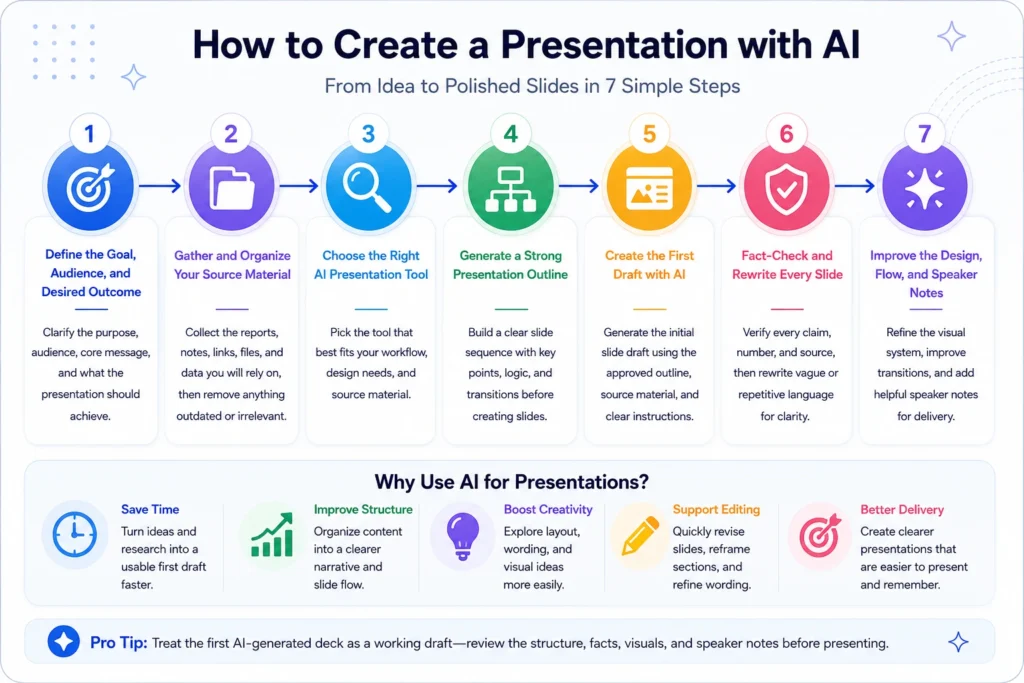
Step 6: Fact-Check and Rewrite Every Slide
AI-generated presentations should never be treated as finished factual documents. Even when the tool uses uploaded files, it may simplify a claim incorrectly, combine separate ideas, remove important context, misread a table, or present an unsupported statement with complete confidence.
Review every slide separately and verify each factual element against the original source. This includes statistics, dates, quotations, company names, product features, research findings, financial figures, legal statements, and claims about cause and effect.
Use the following verification process:
– Match every number with the original source
– Confirm that dates and time periods are current
– Check whether percentages use the correct denominator
– Verify quotations word for word
– Confirm that charts represent the source data accurately
– Distinguish facts from estimates and opinions
– Remove claims that cannot be supported
– Add the source beside important statistics
– Check whether the source is authoritative and still relevant
Do not verify a claim by asking the same AI tool whether it is correct. Return to the original report, spreadsheet, official website, research paper, or approved internal document.
After checking the facts, rewrite the slide text for clarity. AI often produces vague phrases such as “improve efficiency,” “drive innovation,” or “unlock growth” without explaining what they mean. Replace generic language with specific information, measurable outcomes, clear actions, or concrete examples.
For example:
Weak:
“AI can significantly improve marketing performance.”
Stronger:
“Use AI to create first drafts of campaign copy, summarize customer feedback, and produce content variations for human review.”
Also remove unnecessary repetition. If the title already states the main idea, the bullet points should provide evidence, explanation, or action—not repeat the title using different words.
Keep slide text concise, but do not remove essential context simply to make the slide look cleaner. Move supporting explanations, caveats, and delivery guidance into the speaker notes when they are important but too detailed for the slide itself.
Fact-Checking Prompt for AI-Generated Slides
Review the presentation content below as a fact-checking and editorial assistant.
For each slide:
1. List every factual claim, statistic, date, quotation, and named source.
2. Identify which claims are supported by the supplied source material.
3. Flag any claim that is unsupported, ambiguous, outdated, exaggerated, or missing context.
4. Do not verify claims using general knowledge alone.
5. Do not invent replacement evidence.
6. Suggest clearer wording for vague or overly promotional statements.
7. Identify repeated ideas across slides.
8. Recommend which details should remain on the slide and which should move to speaker notes.
Use this format:
Slide number:
Supported claims:
Claims requiring verification:
Missing context:
Rewritten slide text:
Recommended speaker notes:
Presentation:
[PASTE THE PRESENTATION CONTENT]
Approved sources:
[PASTE OR ATTACH THE ORIGINAL SOURCES]
Complete this review before improving the visual design. A beautifully designed presentation with inaccurate claims can damage credibility more than a simple presentation with verified information.
Step 7: Improve the Design, Flow, and Speaker Notes
After the content is accurate, refine how the presentation looks, feels, and moves from one idea to the next. Good design should make the message easier to understand—not distract the audience with decoration, excessive animation, or inconsistent layouts.
Start by reviewing the presentation as a complete sequence. Each slide should lead naturally to the next. If the transition feels abrupt, add a bridge sentence, reorder the slides, or clarify why the next section matters. The audience should always understand where the presentation is going and how each point supports the main objective.
Use a consistent visual system across the deck:
– One primary font family with clear heading and body styles
– A limited color palette that matches the brand or topic
– Consistent spacing, alignment, and margins
– Repeated layouts for similar types of information
– High-contrast text that remains readable on every background
– Visuals that explain the message rather than fill empty space
Reduce visual clutter. Remove unnecessary icons, decorative shapes, weak stock images, repeated labels, and long blocks of text. If a slide contains several unrelated ideas, divide it into two slides instead of shrinking the text.
Choose the visual format that best matches the information:
– Use charts for comparisons, trends, and measurable change
– Use timelines for sequences and milestones
– Use process diagrams for workflows
– Use tables for detailed comparisons
– Use screenshots for product demonstrations
– Use photographs only when they add context or emotional relevance
Check every chart carefully. Confirm that labels, scales, legends, colors, and source notes are accurate. Avoid charts that exaggerate small differences or hide important context.
Speaker notes should support the presenter without duplicating the slide. Use them to explain the evidence, provide examples, define technical terms, anticipate questions, and guide transitions. They should help someone deliver the presentation confidently without reading full paragraphs from the screen.
A useful speaker-note structure includes:
– Main point to communicate
– Supporting explanation or example
– Evidence or source reference
– Transition to the next slide
– Likely audience question or objection
Finally, test the presentation in the format in which it will be delivered. Confirm that fonts, videos, animations, links, and layouts work correctly after export. Review it on the actual presentation screen when possible, because text and visuals that look clear on a laptop may appear too small in a meeting room.
Design and Speaker Notes Improvement Prompt
Review the presentation below as a presentation designer and delivery coach.
For each slide:
1. Identify the single message the audience should remember.
2. Evaluate whether the current layout supports that message.
3. Recommend the most appropriate visual format.
4. Identify text, icons, or design elements that should be removed.
5. Suggest improvements to hierarchy, spacing, contrast, and readability.
6. Check whether the slide connects logically to the previous and next slides.
7. Write concise speaker notes that add explanation without repeating the slide.
8. Add a transition sentence to the next slide.
9. Flag any chart, image, or visual claim that requires verification.
Preserve all verified facts and approved source references.
Presentation:
[PASTE THE PRESENTATION CONTENT]
Brand guidelines:
[PASTE COLORS, FONTS, LOGO RULES, AND VISUAL REQUIREMENTS]
Presentation format:
[IN-PERSON / ONLINE MEETING / RECORDED VIDEO / SELF-SERVE DECK]
Best AI Presentation Prompts You Can Copy
A useful AI presentation prompt should define the audience, objective, source restrictions, slide count, tone, visual direction, and expected action. Replace the placeholders below with your own information, attach the approved source material, and review every generated claim before using it.
Educational Presentation Prompt
Create a [NUMBER]-slide educational presentation about [TOPIC].
Audience:
[DESCRIBE THE LEARNERS, THEIR AGE OR ROLE, AND THEIR CURRENT KNOWLEDGE]
Learning objective:
By the end of the presentation, the audience should be able to [DESCRIBE THE SKILL OR KNOWLEDGE THEY SHOULD GAIN].
Source material:
[PASTE OR ATTACH APPROVED SOURCES]
Requirements:
– Begin with a simple explanation of why the topic matters.
– Introduce concepts in a logical order from basic to advanced.
– Give each slide one clear learning objective.
– Use plain language and define unfamiliar terms.
– Include examples, comparisons, or short scenarios.
– Recommend diagrams, timelines, or charts where useful.
– Add one review question after each major section.
– End with a concise summary and three practical takeaways.
– Use only the supplied sources for factual claims.
– Flag missing information instead of inventing it.
– Place detailed explanations in speaker notes.
For every slide, provide:
1. Slide title
2. On-slide text
3. Recommended visual
4. Speaker notes
5. Source used
Sales Presentation Prompt
Create a [NUMBER]-slide sales presentation for [PRODUCT OR SERVICE].
Target audience:
[DESCRIBE THE PROSPECT, INDUSTRY, ROLE, AND MAIN PRIORITIES]
Business problem:
[DESCRIBE THE PROBLEM THE AUDIENCE NEEDS TO SOLVE]
Proposed solution:
[DESCRIBE THE PRODUCT, SERVICE, OR OFFER]
Desired action:
[REQUEST A DEMO / APPROVE A PILOT / START A TRIAL / PURCHASE / SCHEDULE A MEETING]
Approved evidence:
[ADD CUSTOMER RESULTS, PRODUCT DATA, CASE STUDIES, AND OTHER VERIFIED SOURCES]
Requirements:
– Open with the audience’s problem, not a company introduction.
– Explain the business impact of leaving the problem unresolved.
– Present the solution in clear, outcome-focused language.
– Connect each feature to a specific customer benefit.
– Include verified proof, examples, or case studies.
– Address the most likely objections.
– Avoid unsupported promises and exaggerated language.
– Keep each slide focused on one persuasive point.
– End with one clear call to action.
– Add speaker notes with suggested talking points and objection responses.
For every slide, provide:
1. Slide title
2. Main message
3. Three concise supporting points
4. Recommended visual
5. Evidence required
6. Speaker notes
7. Transition to the next slide
Investor Pitch Deck Prompt
Create a [NUMBER]-slide investor pitch deck for [COMPANY OR PROJECT].
Company:
[DESCRIBE THE BUSINESS IN ONE SENTENCE]
Target customer:
[DESCRIBE THE CUSTOMER SEGMENT]
Problem:
[EXPLAIN THE CUSTOMER PROBLEM]
Solution:
[EXPLAIN HOW THE PRODUCT SOLVES IT]
Business model:
[EXPLAIN HOW THE COMPANY MAKES MONEY]
Verified data:
[ADD TRACTION, REVENUE, GROWTH, MARKET DATA, AND CUSTOMER RESULTS]
Funding objective:
[STATE THE AMOUNT OR PURPOSE OF THE FUNDING]
Requirements:
– Build a clear narrative from problem to opportunity.
– Include problem, solution, product, market, business model, traction, competition, go-to-market strategy, team, financial outlook, and funding request.
– Use only verified numbers from the supplied materials.
– Label estimates and assumptions clearly.
– Do not invent market size, revenue, customer results, or projections.
– Show why the timing and opportunity matter now.
– Explain the competitive advantage without dismissing competitors.
– Keep financial slides simple and transparent.
– End with the funding request and planned use of funds.
– Add a list of evidence still required before presenting.
For every slide, provide:
1. Slide title
2. Investor takeaway
3. On-slide content
4. Recommended chart or visual
5. Source or evidence
6. Speaker notes
Business Report Presentation Prompt
Create a [NUMBER]-slide executive presentation based on the following business report:
[PASTE OR ATTACH THE REPORT]
Audience:
[EXECUTIVES / CLIENTS / DEPARTMENT LEADERS / PROJECT STAKEHOLDERS]
Reporting period:
[ADD DATE RANGE]
Purpose:
[INFORM / REQUEST APPROVAL / EXPLAIN RESULTS / RECOMMEND ACTION]
Requirements:
– Summarize the most important findings first.
– Separate results, causes, risks, and recommendations.
– Preserve all figures exactly as they appear in the source.
– Compare results with targets, previous periods, or benchmarks where supported.
– Use charts only when the underlying data is available.
– Explain significant changes and unusual results.
– Identify decisions that require management attention.
– Separate verified findings from assumptions.
– End with prioritized recommendations, owners, and next steps.
– Add detailed methodology and caveats to speaker notes.
For every slide, provide:
1. Slide title
2. Executive takeaway
3. Key data
4. Recommended chart
5. Source reference
6. Risk or limitation
7. Recommended action
Training Presentation Prompt
Create a [NUMBER]-slide employee training presentation about [TOPIC OR PROCESS].
Audience:
[DESCRIBE THE EMPLOYEES, ROLES, AND EXPERIENCE LEVEL]
Training objective:
After the session, participants should be able to [DESCRIBE THE REQUIRED BEHAVIOR OR SKILL].
Approved policy or source material:
[PASTE OR ATTACH DOCUMENTS]
Requirements:
– Explain why the training matters to the employee’s role.
– Divide the process into clear, practical steps.
– Use realistic workplace examples and scenarios.
– Distinguish required actions from optional best practices.
– Include common mistakes and how to avoid them.
– Add a short knowledge check after each major section.
– Include one final scenario-based exercise.
– Use only the supplied policies and approved sources.
– Do not invent legal, safety, or compliance requirements.
– End with a practical checklist employees can follow.
– Add facilitator notes, timing guidance, and discussion questions.
For every slide, provide:
1. Slide title
2. Training objective
3. On-slide content
4. Scenario or example
5. Recommended visual
6. Facilitator notes
7. Knowledge-check question
After generating any of these presentations, ask the AI to identify unsupported claims, duplicated slides, vague language, weak transitions, and visuals that do not contribute to the message. The prompt creates the draft; the review process determines whether the final presentation is accurate and useful.
Common AI Presentation Mistakes and How to Fix Them
AI presentation tools can produce a polished-looking draft in minutes, but speed often hides structural, factual, and design problems. The most common mistakes are not caused by the tool alone. They usually come from vague instructions, weak source material, and accepting the first generated version without review.
1. Starting with a Vague Prompt
A prompt such as “create a presentation about artificial intelligence” gives the tool almost no direction. The result is usually broad, repetitive, and disconnected from a clear audience need.
Fix it by defining the audience, objective, slide count, source material, tone, and desired action before generating the presentation.
2. Letting the Tool Decide the Entire Structure
AI may create a logical-looking sequence that does not actually support the presentation goal. Important evidence may appear too late, several slides may repeat the same idea, or the conclusion may not lead to a clear next step.
Fix it by generating and approving the outline before creating the slides. Review the narrative without being distracted by design.
3. Using Unsupported Facts and Statistics
Presentation generators may add plausible-sounding claims, numbers, examples, or citations that were not included in the supplied material.
Fix it by restricting the tool to approved sources, marking missing evidence clearly, and verifying every factual claim against the original document.
4. Filling Slides with Too Much Text
AI often treats each slide like a short article. Long paragraphs reduce readability and encourage the presenter to read directly from the screen.
Fix it by keeping one main message per slide, limiting visible text to the essential points, and moving explanation, evidence, and delivery guidance into speaker notes.
5. Repeating the Same Idea Across Multiple Slides
Generated presentations frequently restate the same benefit, problem, or conclusion with slightly different wording.
Fix it by assigning every slide a distinct purpose. If two slides communicate the same message, combine them or replace one with evidence, an example, a comparison, or an action.
6. Choosing Decorative Visuals Instead of Useful Ones
Generic stock images, abstract illustrations, and unrelated icons may make the presentation look complete without improving understanding.
Fix it by selecting visuals that explain the content. Use charts for data, timelines for sequences, diagrams for processes, screenshots for product demonstrations, and photographs only when they add meaningful context.
7. Accepting the Default Design Without Brand Review
The first generated theme may use unsuitable colors, inconsistent typography, weak contrast, or layouts that do not match the organization’s visual identity.
Fix it by applying the approved fonts, colors, logo rules, spacing, and image style after the content structure is stable.
8. Ignoring Speaker Notes
A visually clean deck can still be difficult to deliver when the presenter lacks examples, explanations, source details, and transitions.
Fix it by adding speaker notes that explain the main point, provide supporting evidence, anticipate likely questions, and connect each slide to the next.
9. Trusting AI-Generated Charts Without Checking the Data
A chart may look professional while using the wrong values, labels, scale, comparison period, or visual proportion.
Fix it by recreating important charts from the original data and checking every axis, legend, label, percentage, and source note.
10. Exporting Without Testing the Final File
Fonts, videos, links, animations, and layouts may change when the presentation is exported or opened on another device.
Fix it by testing the final deck in the exact format, software, screen, and delivery environment that will be used during the presentation.
The most reliable approach is to treat every AI-generated deck as an editable first draft. The tool can accelerate research organization, outlining, writing, and visual exploration, but the final responsibility for accuracy, clarity, and persuasion remains with the presenter.
AI Presentation Quality Checklist
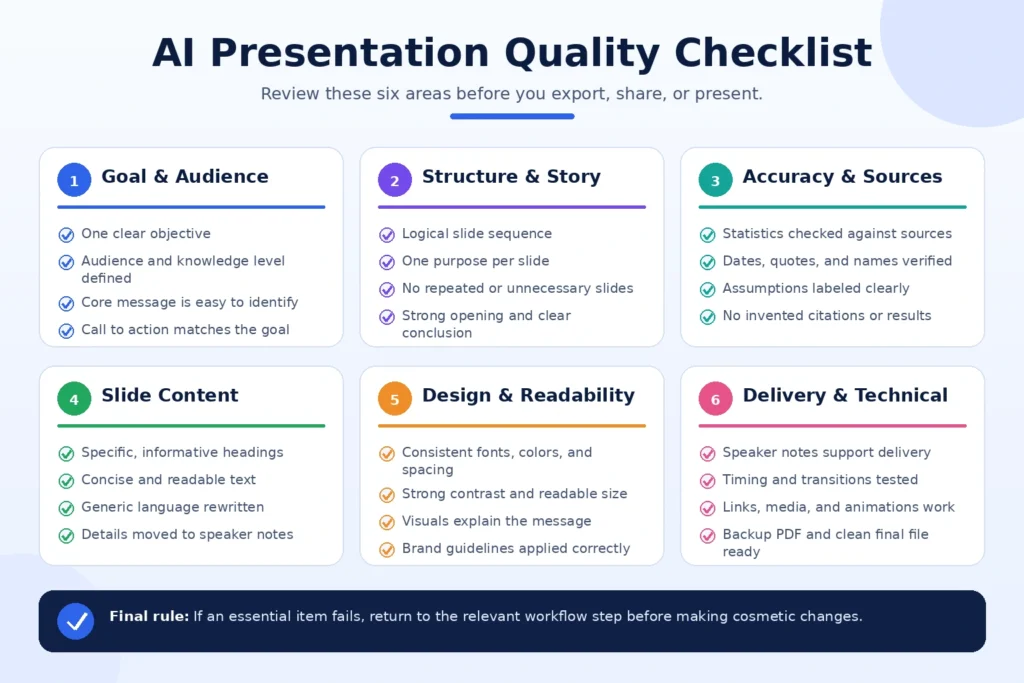
Before exporting or delivering an AI-generated presentation, review it with the following checklist. A presentation should pass every essential item before it is shared with clients, colleagues, students, executives, or investors.
Goal and Audience
- The presentation has one clear objective.
- The target audience is defined.
- The content matches the audience’s knowledge level.
- The central message is easy to identify.
- The final call to action supports the original goal.
Structure and Story
- The opening explains why the topic matters.
- Every slide has one clear purpose.
- The slide order follows a logical narrative.
- Repeated or unnecessary slides have been removed.
- Transitions between sections are clear.
- Evidence appears before major conclusions or recommendations.
- The final slide summarizes the message and next action.
Accuracy and Sources
- Every statistic has been checked against its original source.
- Dates, names, quotations, and figures are accurate.
- Estimates and assumptions are clearly labeled.
- Unsupported claims have been removed or marked for verification.
- Charts match the original data.
- Important claims include visible source references.
- Outdated sources have been replaced where possible.
- No citation, quotation, customer result, or case study was invented by AI.
Slide Content
- Each slide communicates one main message.
- Headings are specific and informative.
- Visible text is concise and readable.
- Bullets add evidence, explanation, or action instead of repeating the title.
- Long explanations have been moved to speaker notes.
- Generic phrases and unnecessary promotional language have been rewritten.
- Technical terms are explained when needed.
- The tone remains consistent throughout the presentation.
Design and Readability
- Fonts, colors, and layouts are consistent.
- Text has sufficient contrast against the background.
- Font sizes are readable on the intended screen.
- Spacing and alignment are consistent.
- Visual hierarchy makes the most important information clear.
- Decorative elements do not distract from the message.
- Images are relevant and properly licensed.
- Charts, screenshots, and diagrams remain clear after export.
- Brand guidelines are applied correctly.
Speaker Notes and Delivery
- Speaker notes add context instead of repeating slide text.
- Important examples, evidence, and explanations are included.
- Transitions between slides are prepared.
- Likely audience questions or objections have been considered.
- The presentation fits the available delivery time.
- The presenter has practiced the opening, conclusion, and call to action.
Technical Review
- The final file opens correctly.
- Videos, animations, and embedded media work.
- Links point to the correct destinations.
- Fonts and layouts remain consistent on another device.
- The presentation has been tested in presentation mode.
- A backup PDF version is available.
- Sensitive notes, hidden slides, comments, and internal data have been removed.
- The file name, title, author details, and version date are correct.
If several items fail, return to the relevant workflow step rather than making cosmetic changes at the end. The checklist is designed to catch factual, structural, visual, and technical problems before they reach the audience.Frequently Asked Questions
Can AI create a complete presentation from a single prompt?
Yes. Tools such as Gamma, Canva AI, Gemini, and Microsoft Copilot can generate an initial presentation from a prompt. However, the first result should be treated as a draft. You still need to review the structure, verify factual claims, rewrite generic content, replace weak visuals, and confirm that the presentation matches the intended audience and objective.
What is the best AI tool for creating presentations?
The best tool depends on your workflow. Gamma is useful for quickly turning an idea, outline, or document into a structured draft. Canva AI offers greater visual flexibility and access to templates and brand assets. Gemini works well for teams using Google Workspace, while Copilot is practical when the final presentation must remain in PowerPoint and Microsoft 365.
Can AI create a presentation from a PDF or document?
Many AI presentation tools can generate slides from uploaded documents, pasted text, reports, or supported files. The quality of the output depends on how clearly the source material is organized. Review the generated slides carefully because the tool may omit context, simplify complex information, or misunderstand tables and statistics.
How do I make an AI-generated presentation look professional?
Start with a clear outline, keep each slide focused on one main message, and apply a consistent visual system. Use readable fonts, strong contrast, limited colors, consistent spacing, and visuals that explain the content. Remove decorative elements that do not add meaning, and test the presentation after exporting it.
Are AI-generated presentations accurate?
Not always. AI can produce incorrect statistics, unsupported claims, misleading summaries, or invented citations. Verify every important fact against the original source, especially numbers, dates, quotations, research findings, product details, financial information, and legal or compliance statements.
Can I use an AI-generated presentation for work or commercial purposes?
In many cases, yes, but usage rights depend on the selected tool, subscription plan, uploaded material, generated assets, fonts, templates, and stock media. Review the platform’s current terms and licensing rules, and confirm that you have permission to use all source files, brand assets, images, and other materials included in the final presentation.
Final Thoughts
AI can dramatically speed up presentation planning, outlining, writing, and design, but the strongest results still depend on a clear objective, reliable source material, and careful human review. The first generated deck should be treated as a working draft—not as a finished presentation.
A repeatable workflow produces better results than relying on a single prompt. Define the audience and desired outcome, organize the source material, choose the right tool, approve the outline, generate the first draft, verify every important claim, and then improve the design, transitions, and speaker notes.
Gamma is particularly useful for creating structured drafts quickly, while Canva AI offers greater flexibility for branded and visually driven presentations. Gemini can support teams working inside Google Workspace, and Microsoft Copilot is practical for PowerPoint-based workflows. The best choice depends on where your content already lives and how much control you need after generation.
Regardless of the tool, keep human control over the message, evidence, visual hierarchy, and final delivery. AI can remove much of the repetitive work, but accuracy, clarity, credibility, and persuasion remain the presenter’s responsibility.
Explore our Gamma review and Canva AI review for a closer look at two popular presentation workflows, visit our Gemini review for Google Workspace capabilities, or browse the GoTaskAI AI Tools directory to compare more tools for writing, design, research, productivity, video, and business workflows.